Investigations

Overview
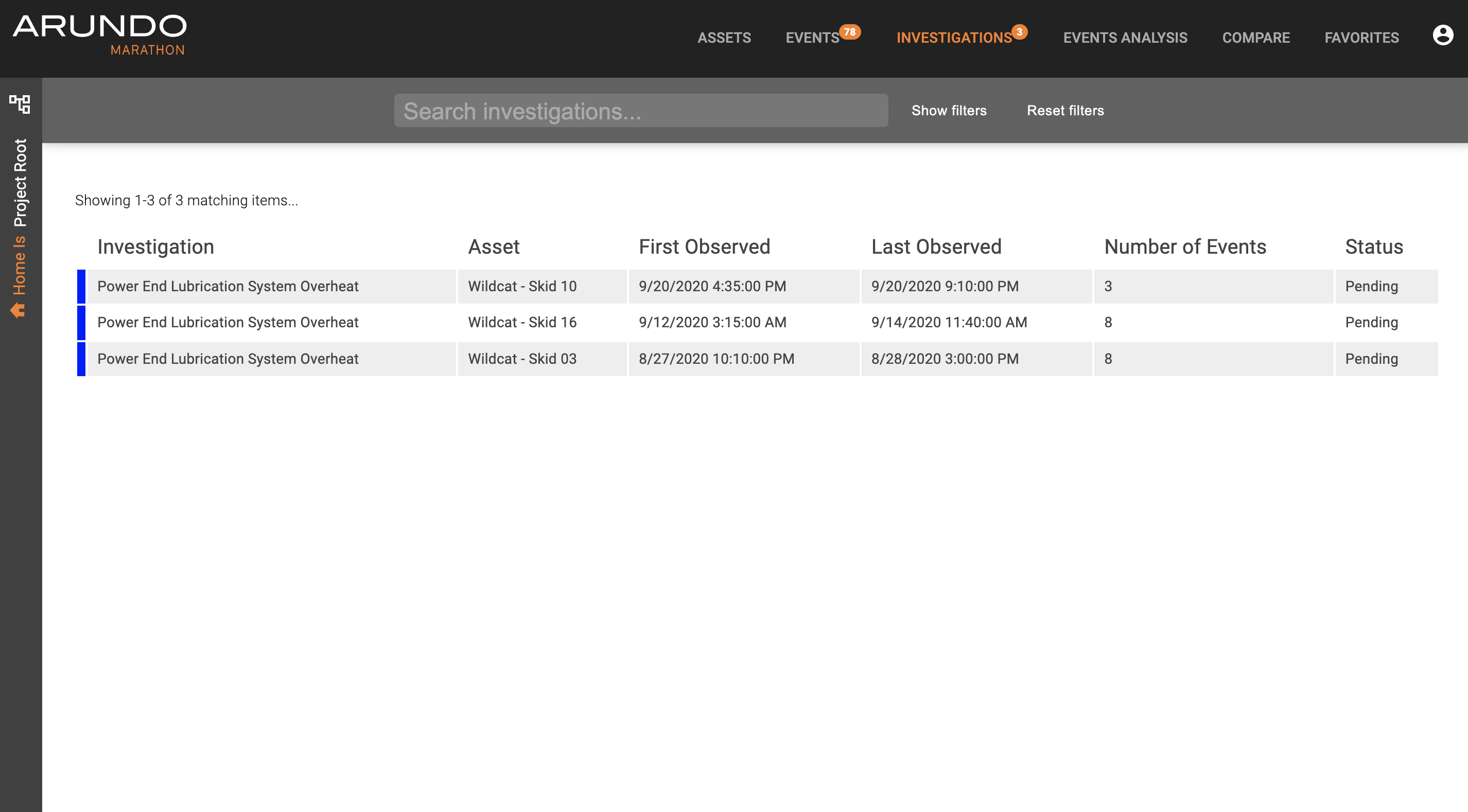
An investigation is a series or collection of events or circumstances that meet a logical condition within a predefined time frame (e.g. two overheat events within 24 hours). The Investigations page summarizes all investigations in a tabular form, complete with investigation type, associated asset, first and last observed date / time, number of associated events, and status (e.g. pending, in progress, or resolved).
If you click on the Investigations tab, you will see a screen that looks similar to the one below:
An Investigation consists of a two-part work flow:
1. Investigation Generation
An investigation is triggered when a series of events meet a logical condition, e.g. two overheat events within a 24-hour period or a cumulative 20 psi pressure drop in lube pump suction pressure in 1 hour.
2. Resolution
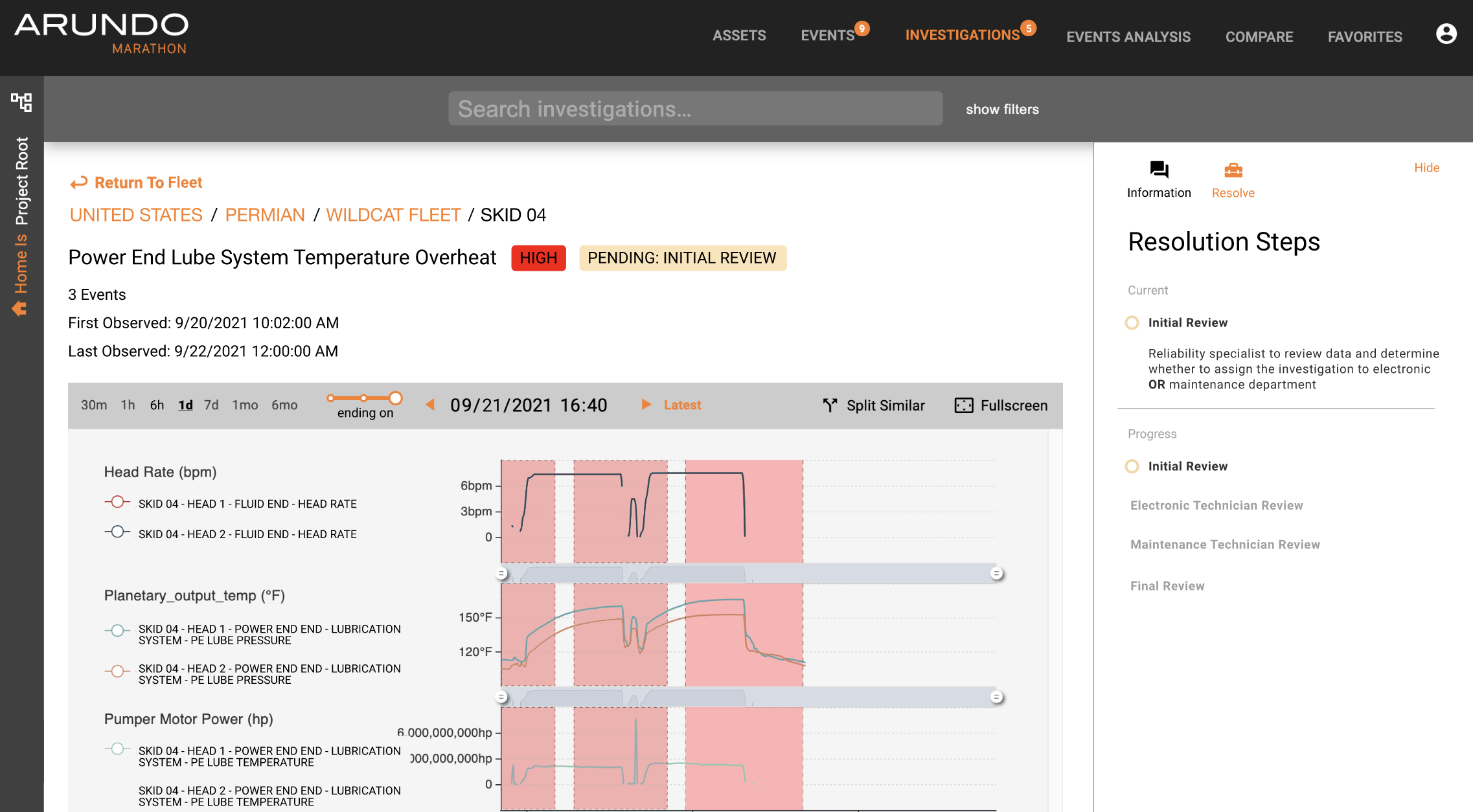
Series of steps or prescriptive actions to resolve or mitigate the associated events. In the Resolve tab, the user has the ability to progress the investigation from Pending to In Progress to Closed/Resolved, based on the actions they are taking -- while detailing what has been done along the way.
NOTE: Both Pending and In Progress investigations are considered to be “Open.” Before an Investigation can be closed, one must interact with the “Resolve” tab, i.e. enter a comment and then close the Investigation.
Exploring Investigations
Here's how to explore Investigations:
- Access Marathon.
- Click Investigations on the Navigation bar.
- Find an investigation of interest, either starting at the top of the queue or by searching for specific keywords to filter for desired results.
- Click into the investigation.
- Analyze relevant time-series data.
- Take actions (e.g. consult other colleagues using comments, start the resolution workflow, etc.).
Searching Investigations
By default, you can see both open and resolved investigations. If you are looking for a specific investigation, you can filter the list by inputting text in the search box, or use the drop down filters by clicking the "Show filters" button.
Search Shortcuts
Search shortcuts provide a search expression to quickly allow users to filter search results to see Investigations that fall into a particular category, possess specific characteristics, or the like. The shortcuts for Investigations are listed below:
Investigations - Flags
- is:open (as a reminder, this includes investigations that are either Pending or In Progress)
- is:resolved
Investigations - Comments
- commented:self
- tagged:self
- has:comments
Ensure that there are no spaces between the above shortcuts.
Using the Filters
Another way of filtering search results may be to make use of the actual filters, by clicking show filters. Once you hit show filter, the banner will expand, and you will see the following:

A user can then proceed to check the appropriate filter boxes that match what he or she would like to see.
Exploring a Specific Investigation
Viewing Details
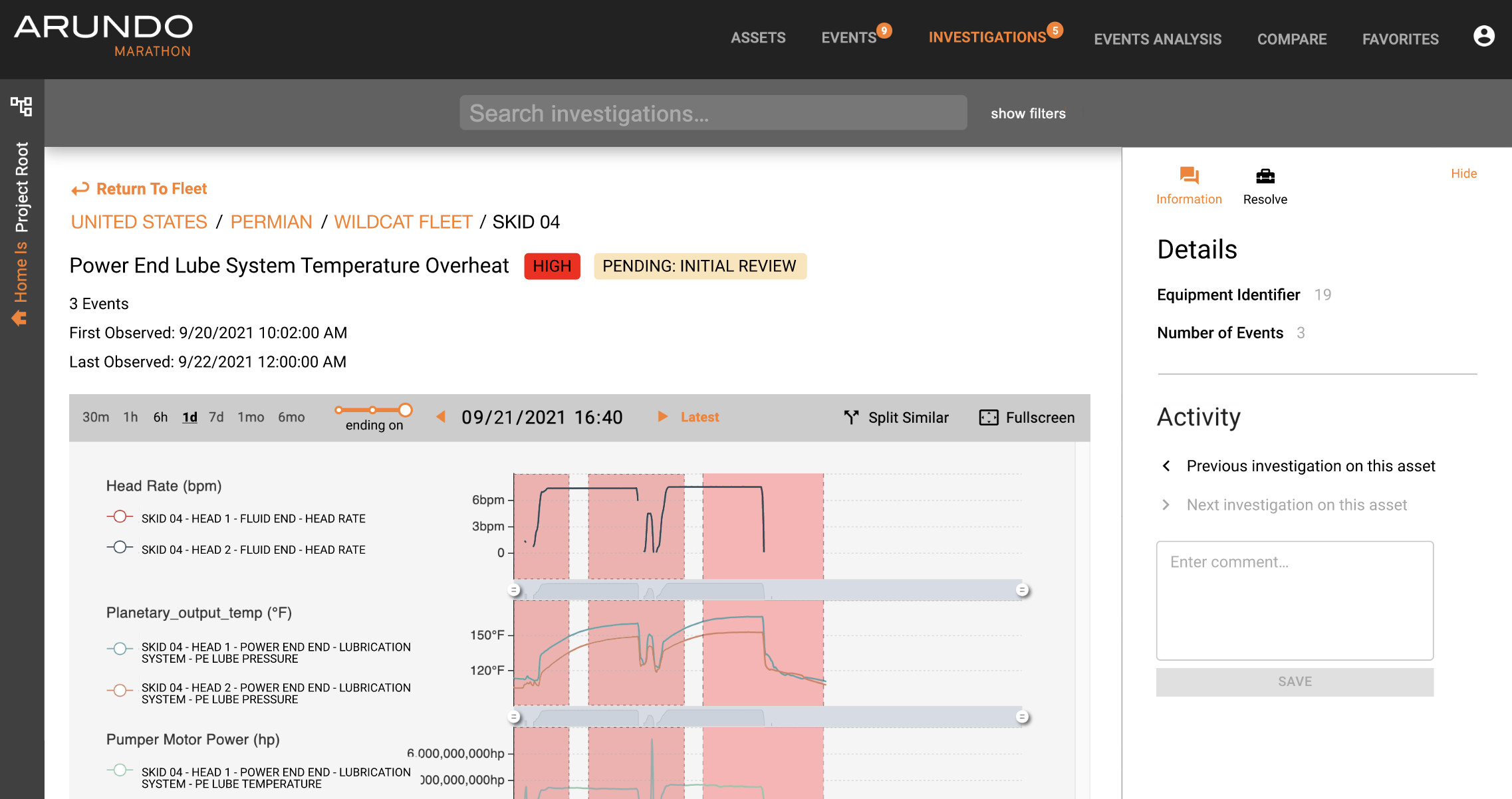
If a user clicks on any of the investigations, the user will be taken to the investigation details, where the number of events, start/end times, duration, and relevant time-series data will be shown. A user can examine the relevant graphs to facilitate troubleshooting the event. If a user requires additional information or would like to alert a colleague of the event, the user may make use of the Information section on the right-hand panel.
Leave Comments and Collaborate
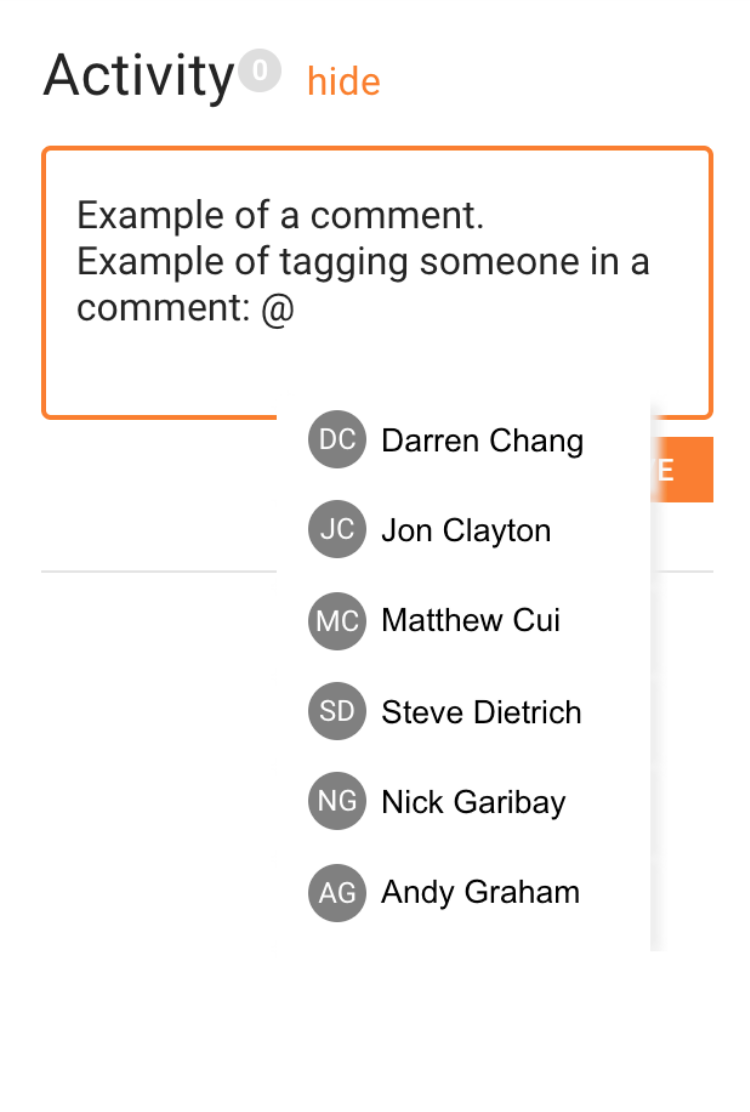
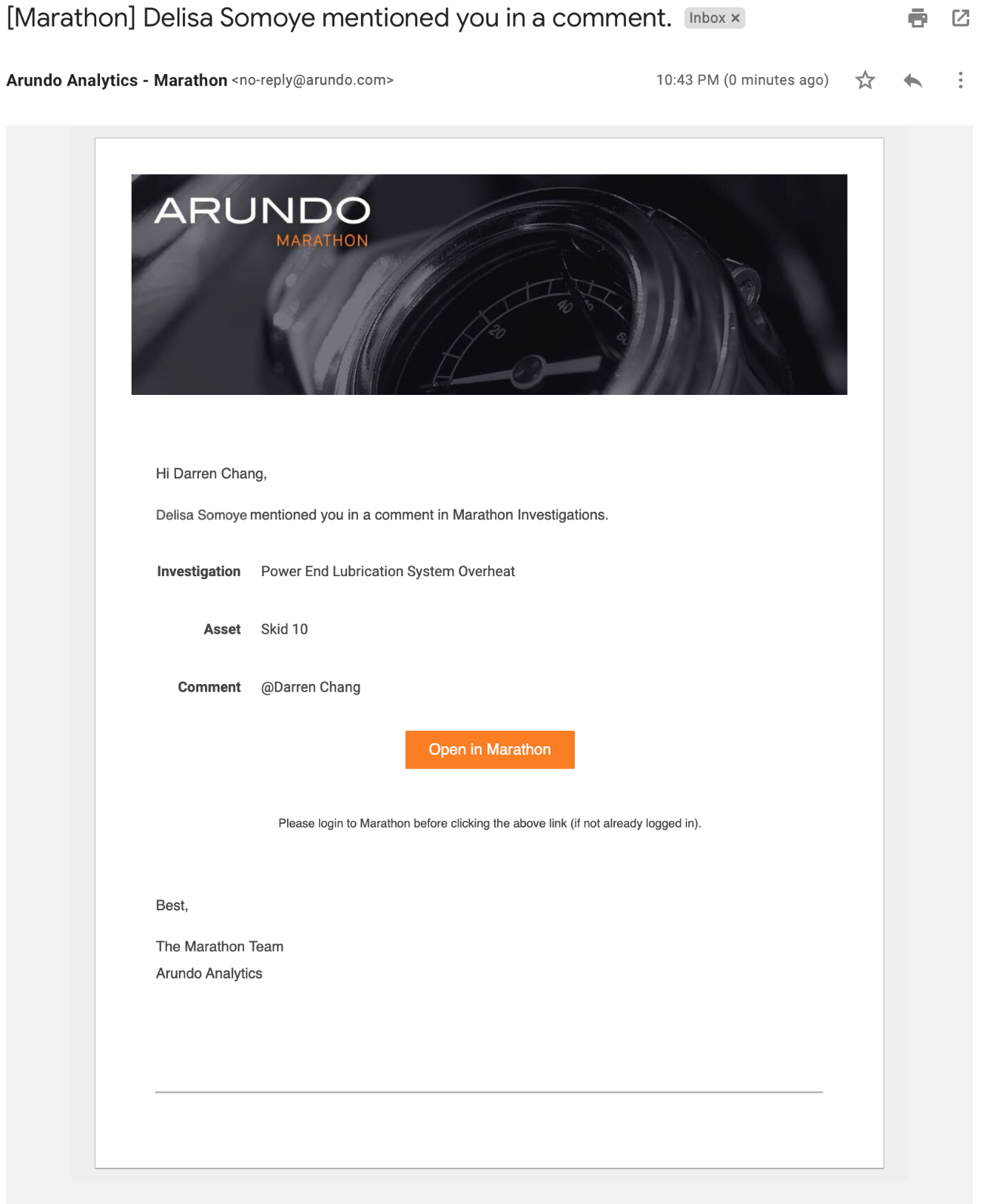
To tag a colleague, a user may make use of the @ feature. Once a user types '@', other users within the same organization will be listed. As a user begins to type the desired user's name, the search results will be narrowed down. The user should click on the desired name and write an appropriate comment. When finished, the user should click SAVE, and the person tagged in the comment will receive an email notification. Below is an example of using the comments feature:
The email notification will include the investigation, asset, comment, and a direct link to the investigation. See below:
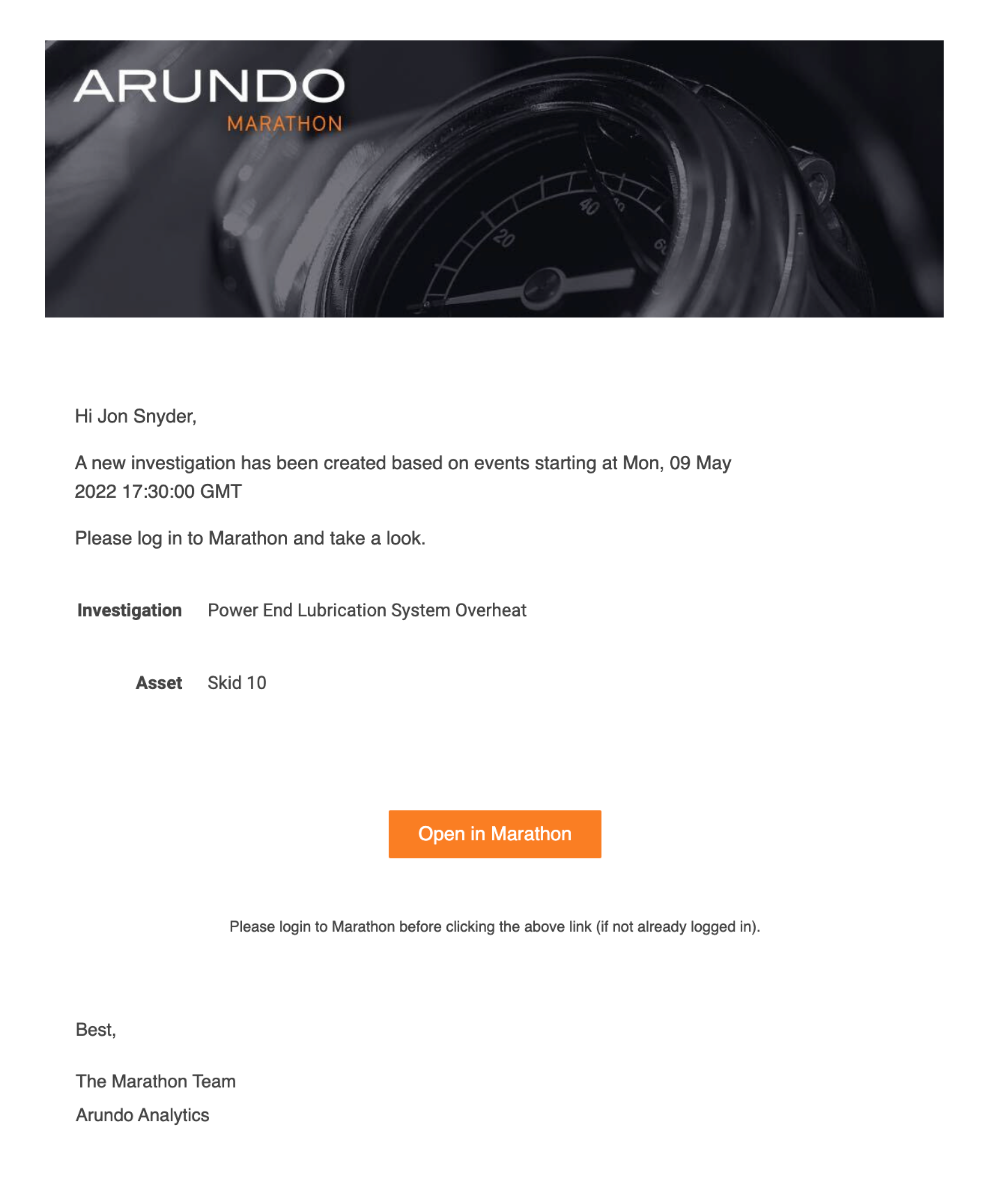
If a user subscribes to an investigation group notification, he or she will be notified via email once a particular type or asset of investigation is generated-see email below:
Resolve an Investigation Collaboratively
The resolve tab on the right-hand panel allows the user to see a series of department-specific steps defined to track the progress of an investigation and, ultimately, resolve it.
After initial review of an investigation, the users can choose from and select a series of actions from the dropdown to move the investigation forward, or close the investigation if no further action is needed. The investigation status will change to "resolved" and deemed completed once the user chooses to close it in any step. Although the particular categories and steps vary from organization to organization, a sample resolution is shown below:
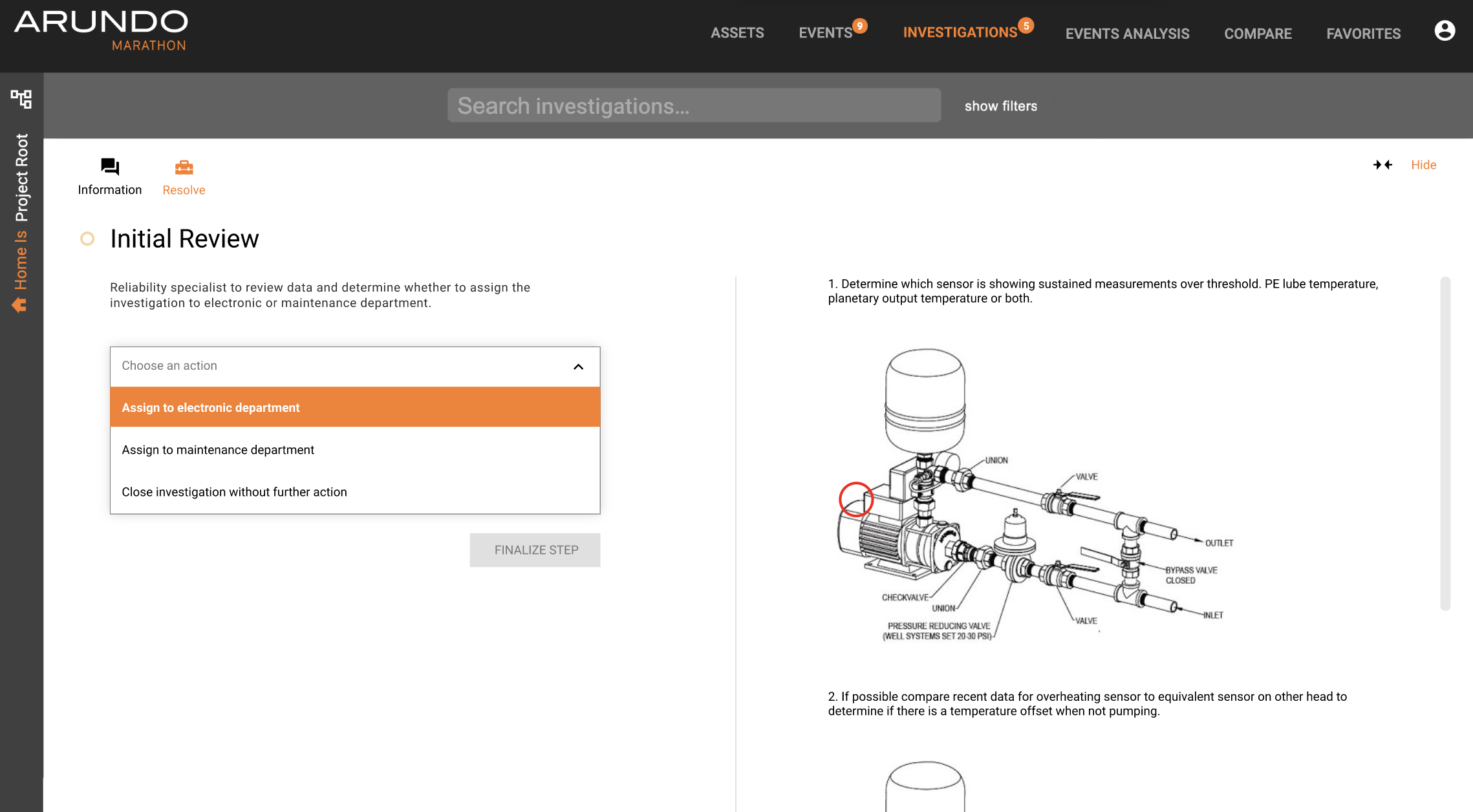
The user would work his or her way down the list of steps on the right side. Pictures may be attached to facilitate this process. The user can then hand off to other departments if necessary–as given by the first two options in the dropdown list–or close the investigation. Whichever option chosen, the user will also have to enter a relevant option before proceeding with the handoff or closing the resolution.