Getting Around

Marathon is a cloud-based application that runs in Google Chrome. This article introduces the different workflows for which a user may use the Marathon application. More details can be found by clicking into each of the five tabs available in Marathon: Assets, Events, Event Analysis, Compare, and Favorites.
Navigating
Navigating the top banner allows a user to move around the Marathon application and log out.

-
Assets - opens the Assets page, where you can monitor the performance of specific assets.
-
Investigations - opens the Investigations page, where you can view Investigations and their associated events.
-
Events - opens the Events page, where you can view Events and associated details.
-
Events Analysis - opens the Event Analysis page, where you can perform frequency analysis on events.
-
Reports - opens the Reports page, where you can view reports set up for your organization, if any.
-
Compare - opens the Compare page, where you can compare the performance of multiple assets at once.
-
Favorites - opens the Assets page, where you can easily open favorite views that have been created.
-
Time zone selector - allows the user to choose what time zone to view time series data in. See below for details.
-
User Icon - allows user to access online help guide or to sign out of the application.
Below is additional high-level navigation information about the Marathon application:
Sidebar / Asset Tree
The sidebar displays the assets available for monitoring via the asset tree (i.e. asset hierarchy). By default, the asset tree is collapsed on the left side of the screen, as below:

Note that this sidebar contains whatever asset has been set to Home. If no asset has been set to home, the Project Root will be set to home, by default. This can always be changed by clicking "Set As Home" in the top right corner of the appropriate asset.
By clicking on the asset tree icon, you can expand the asset tree, as below:
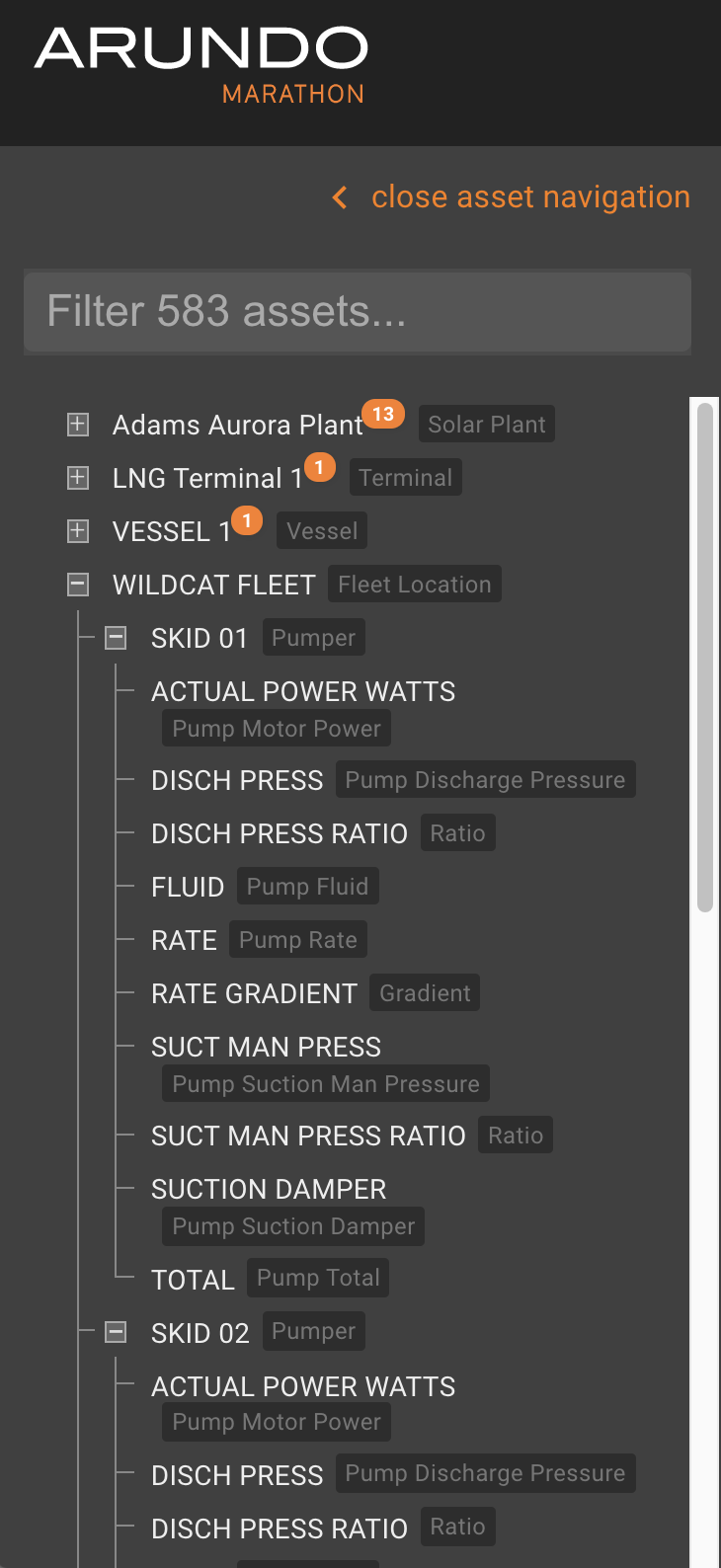
The different assets and tags can be explored through this tree or hierarchy. To close or collapse the side bar, simply click "close asset tree". The number after the asset indicates the number of OPEN events under it. The color of the number indicates the severity of the latest event.
When you select an asset on the sidebar, time-series graphs for the last 24 hours shows on the Display panel.
Display Panel
The Display panel displays one or many time-series graph(s) showing data for the asset you are monitoring.
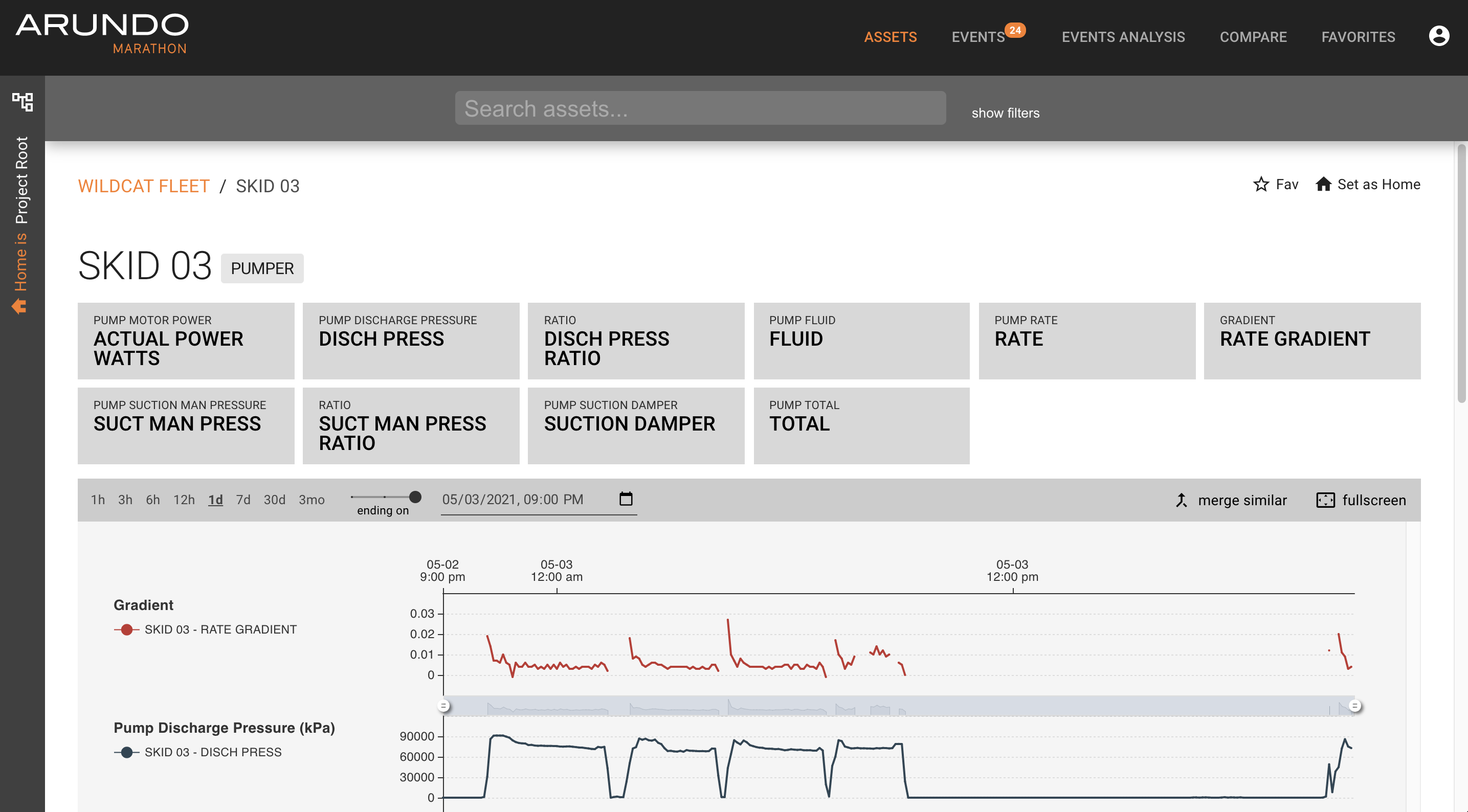
You can do the following when monitoring assets:
- View data at specific points in time
- Adjust the period shown on the graph
- Zoom in further to the data shown
- Save the asset to your favorites
For more detailed information, go to the Navigating Time-Series Data page.
Breadcrumbs
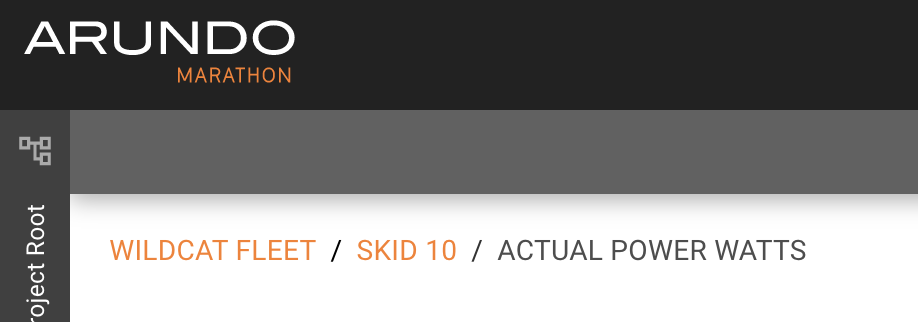
The breadcrumbs show at the top of the Display Panel as you navigate through the subsystems on an asset. Click the orange links to go back to that asset.
Asset Cards
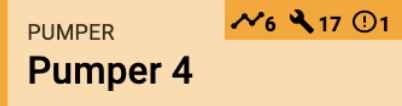
Asset cards represent the subsystems and sensors on an asset. Click the cards to navigate and display sensor data. The badge on top right shows the number of open events (model-driven, PMA maintenance and failure), the text below the asset name is the most recent open event.
Assets
The Marathon user interface is specifically designed to make it easier to monitor your assets. In the Assets tab, the user has the ability to browse assets via Asset Cards, which appear on the main display screen, or to browse assets via the asset hierarchy, which is available by expanding the collapsible sidebar. It is also from the Assets page that you initiate mass comparisons.
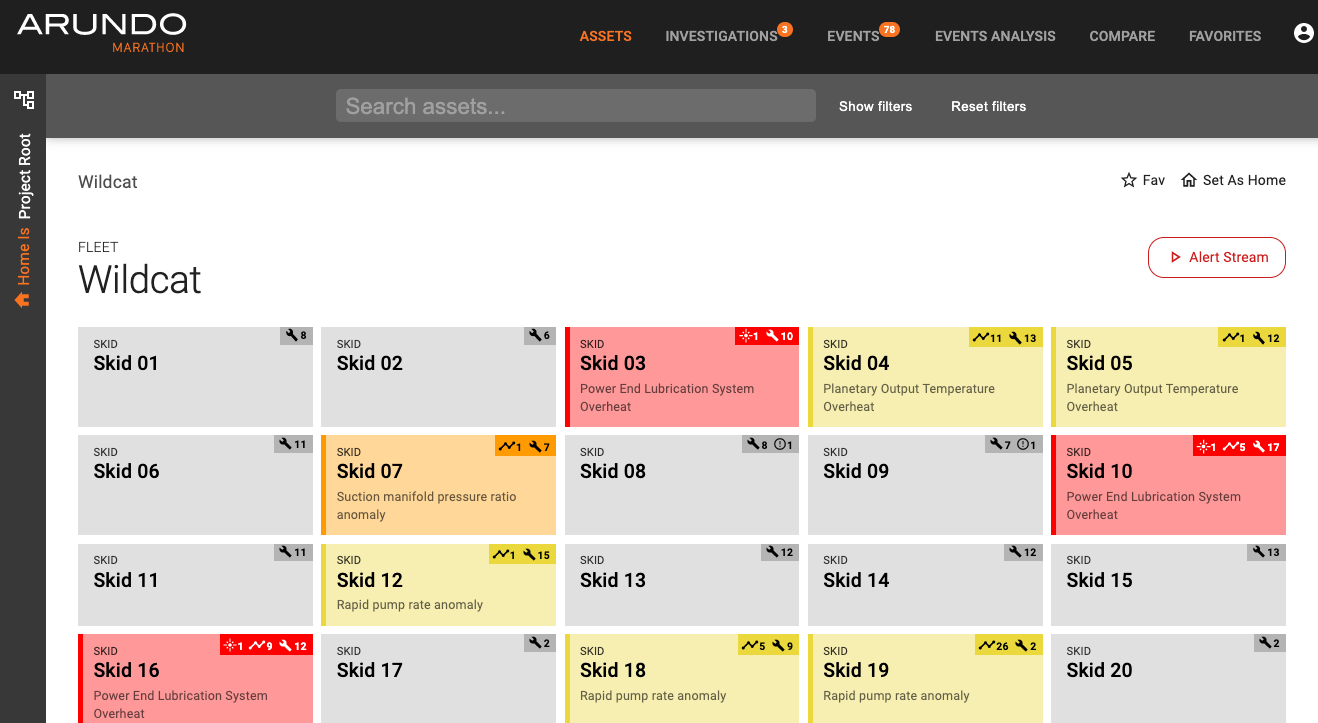
For more detailed information, go to the Assets page.
Events
In the Events tab, a user is able to see all events; it displays occurrences when sensor readings or key performance indicators for an asset have gone above/below a predetermined threshold. For each event, there is an event description, the associated asset, when it started and ended, its duration, whether the event is open or not, and the number of associated comments. The list of events can also be filtered, as desired by the user. Clicking into an event allows you to see additional event details and relevant information. When an orange dot displays, this means there are new notifications to view.
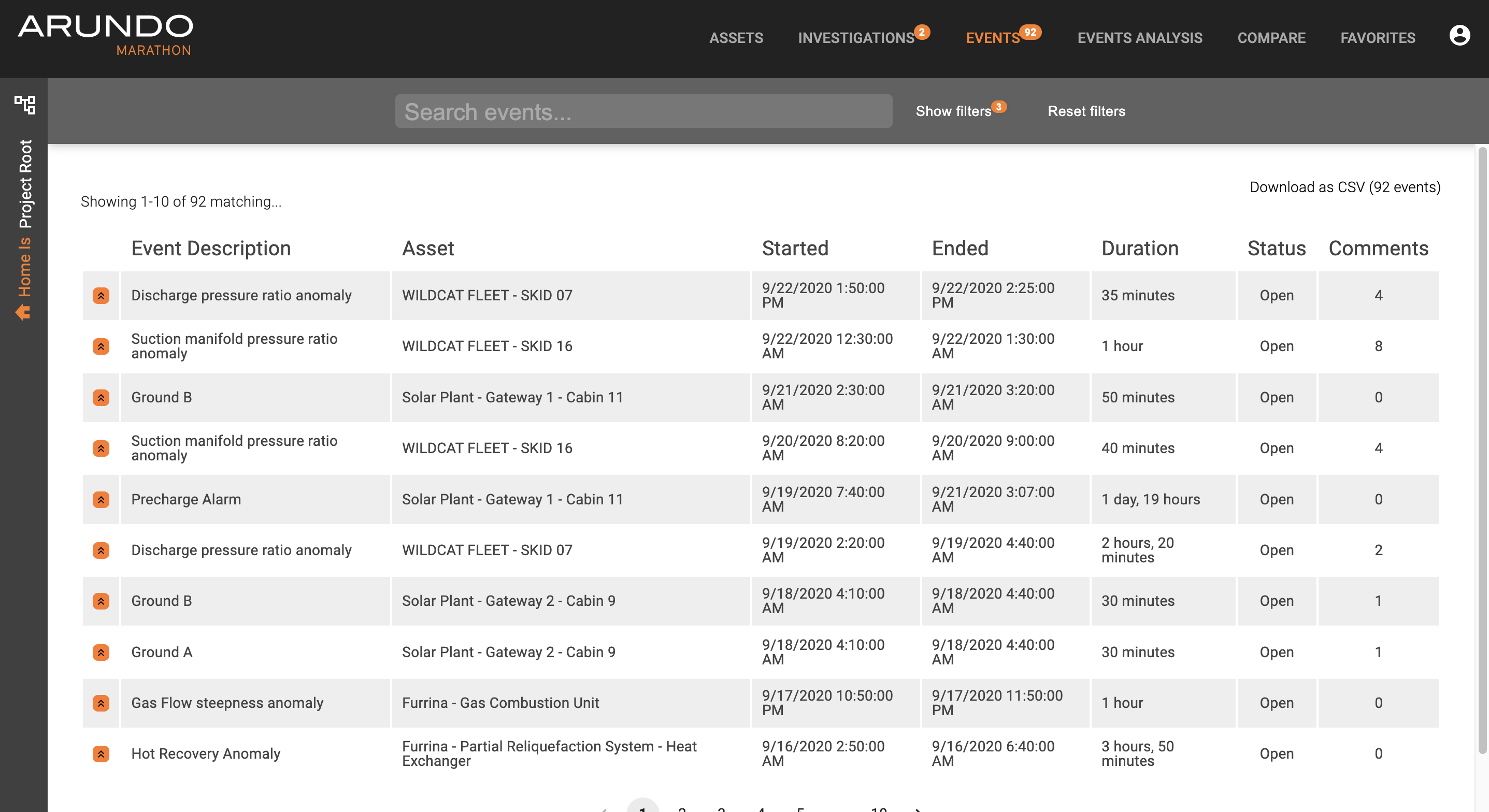
For more detailed information, go to the Events page.
Investigations
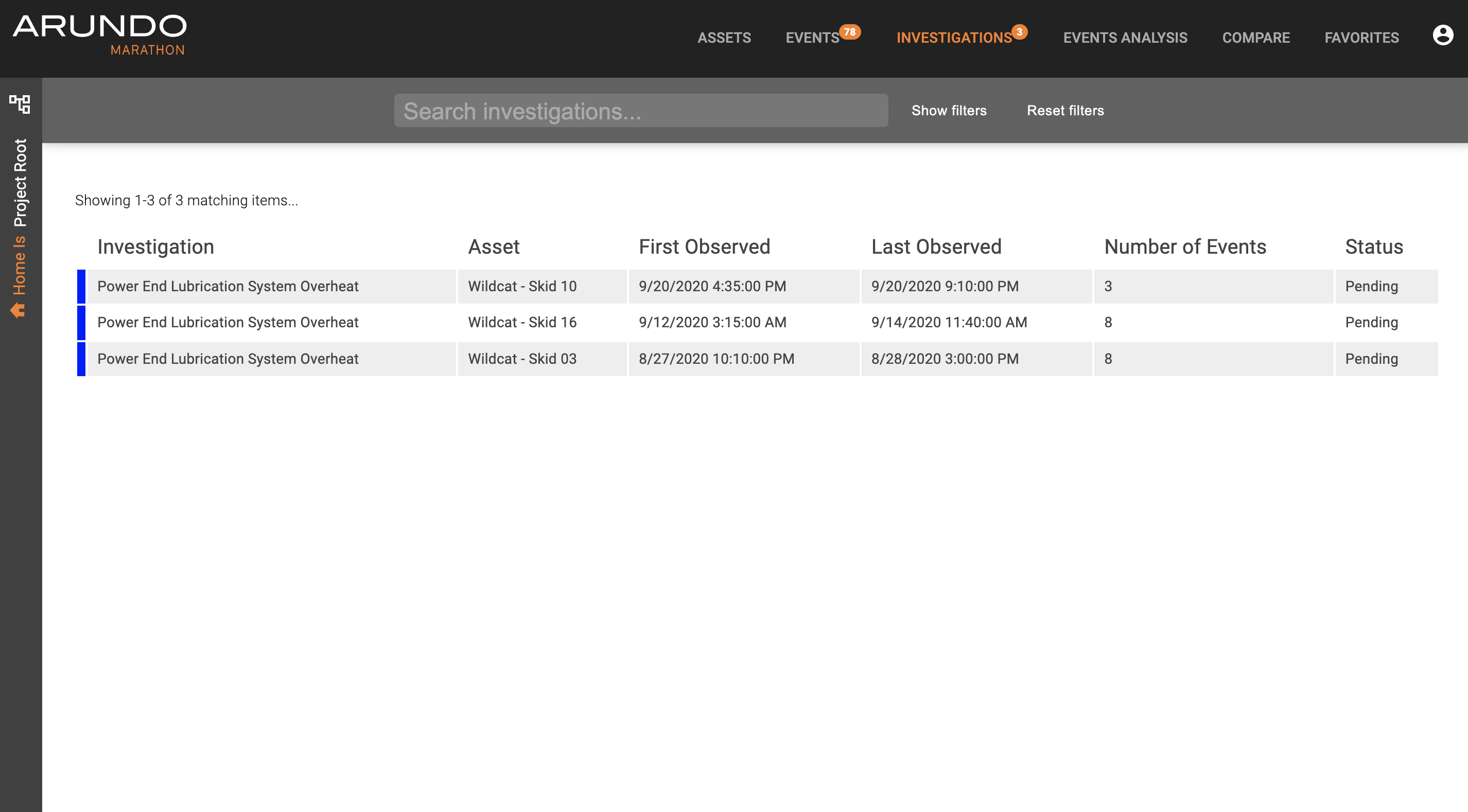
An investigation is a series or collection of events or circumstances that meet a logical condition. In the page, you will first see a list of investigations. When you click in an investigation, you can review its associated events, resolve step by step, and ultimately close the investigation.
Event Analysis
The Event Analysis page displays visualizations of event types per asset over a specified period of time. This allows a user to perform frequency analysis for each event type per asset.
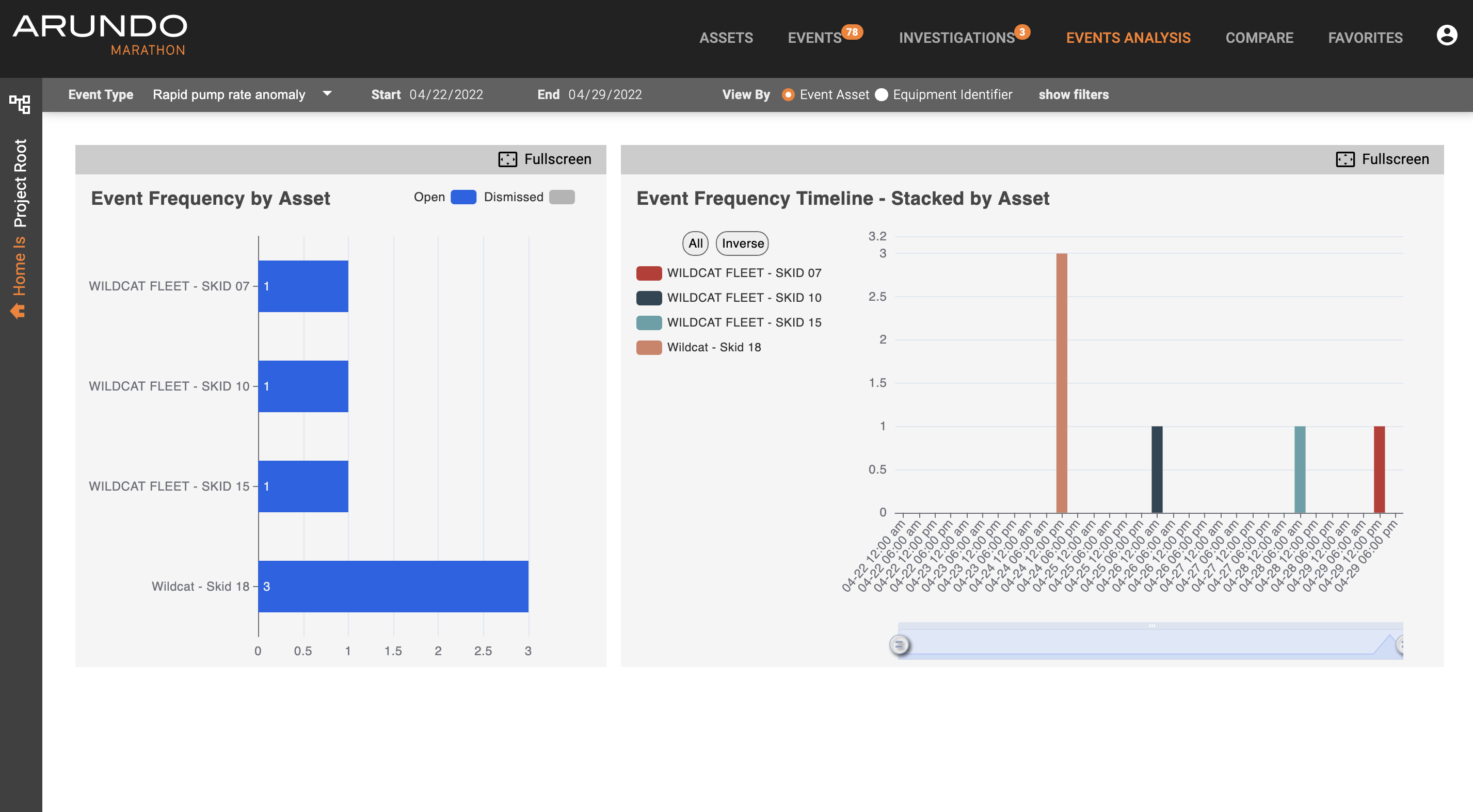
For more detailed information, go to the Event Analysis page.
Reports
These Asset Failure Reports summarize pre-configured information for the specified asset based on the associated historical data in Marathon across the asset’s lifetime.
For more detailed information, go to the Reports page.
Compare
The Compare enables comparison of asset performance across assets or even specific tags on a fleet or at a facility. This can be done via drag and dropping assets from the asset tree or via mass asset selection in the Assets tab.
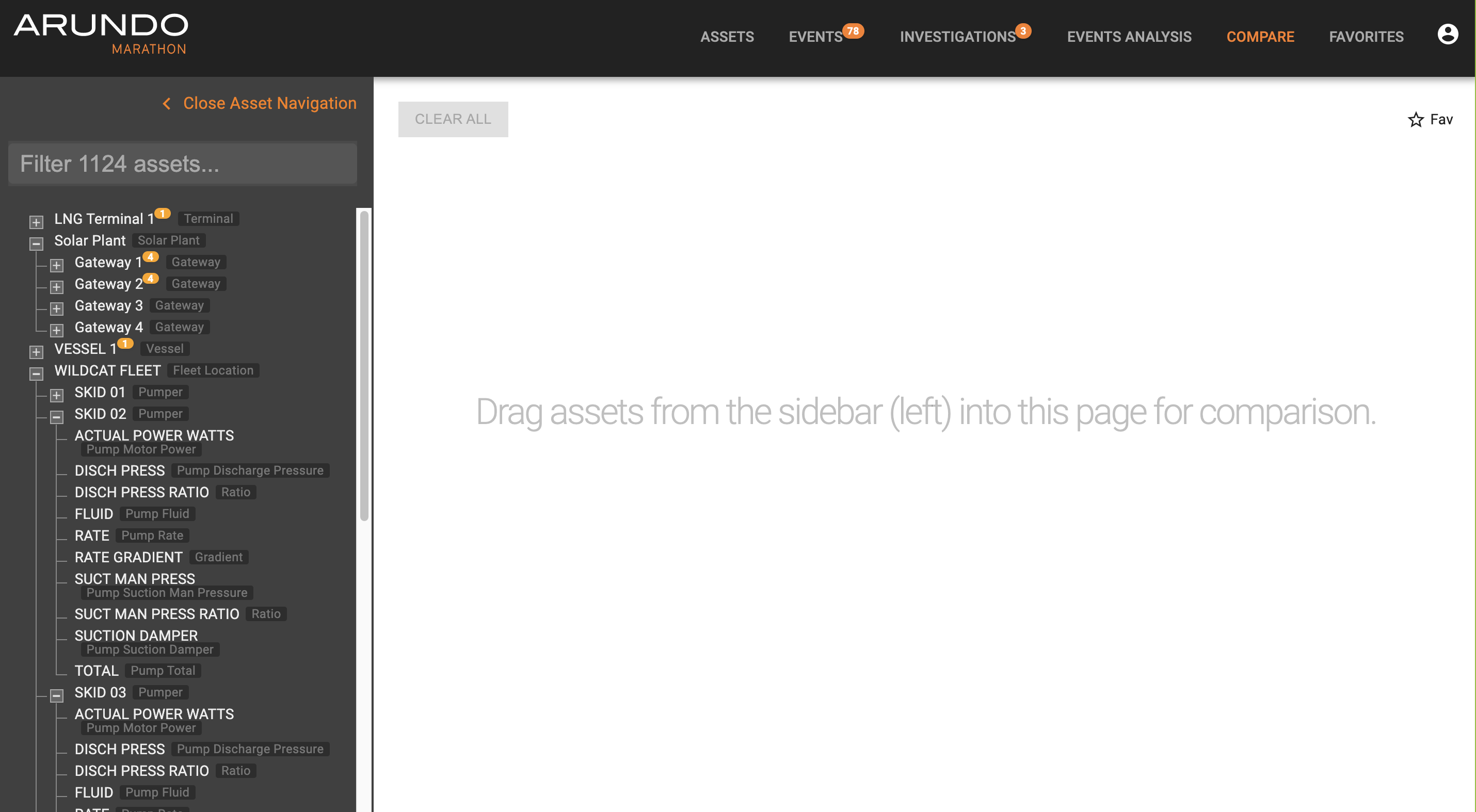
For more detailed information, go to the Compare page.
Favorites
The Favorites tab summarizes views you have marked as favorites. You can favorite time-series graphs or comparisons while on a particular view and it will be saved to your Favorites List. This makes is easier to display that data again in the future without having to recreate the view.
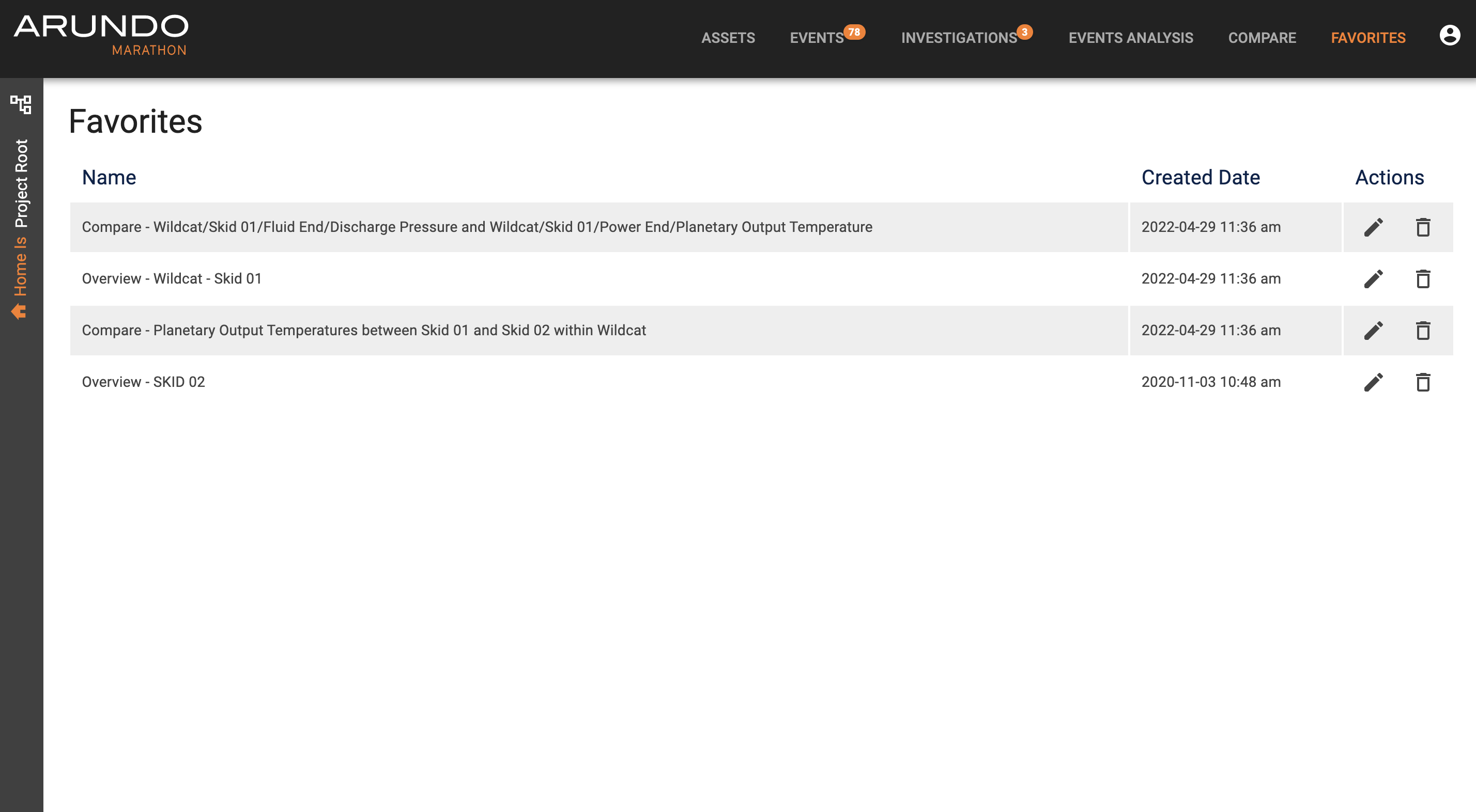
To save a time-series graph or comparison to your favorites, select Fav above the graph.
For more detailed information, go to the Favorites page.
Time zone selector
While Marathon stores all time series data in Coordinated Universal Time (UTC), a user can choose what time zone to display data in. The default time zone follows the preferences set in the users browser. However, to harmonize time zone offsets to correlate with 3rd party systems, or to facilitate a meeting with participants from different time zones, the user can select to see timestamps in another time zone than the default.
To change the time zone: - click the on the globe icon - select a new time zone from the dropdown menu - click "save"
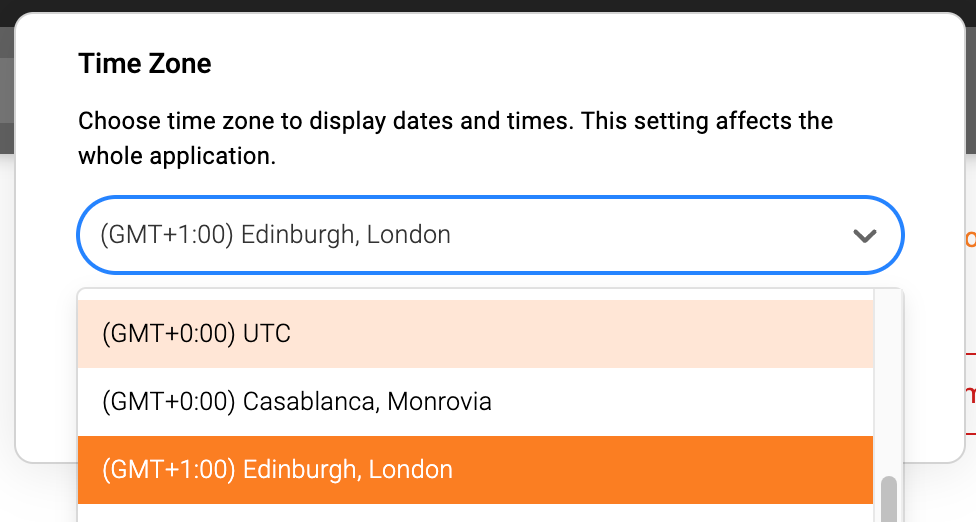
The time zone will reset to the browser default when reloading the page
Set as Home
The "Set as Home" feature allows a user to temporarily delimit Marathon to only show data and information related to a subset of all assets. This feature is commonly used to focus on a particular top-level asset or piece of equipment. When setting an asset as "home", Marathon will:
- Hide all other assets than the one set as "home" in the asset tree
- Only show events related to the "home" asset in the list of events
- Only show investigations related to the "home" asset in the list of investigations
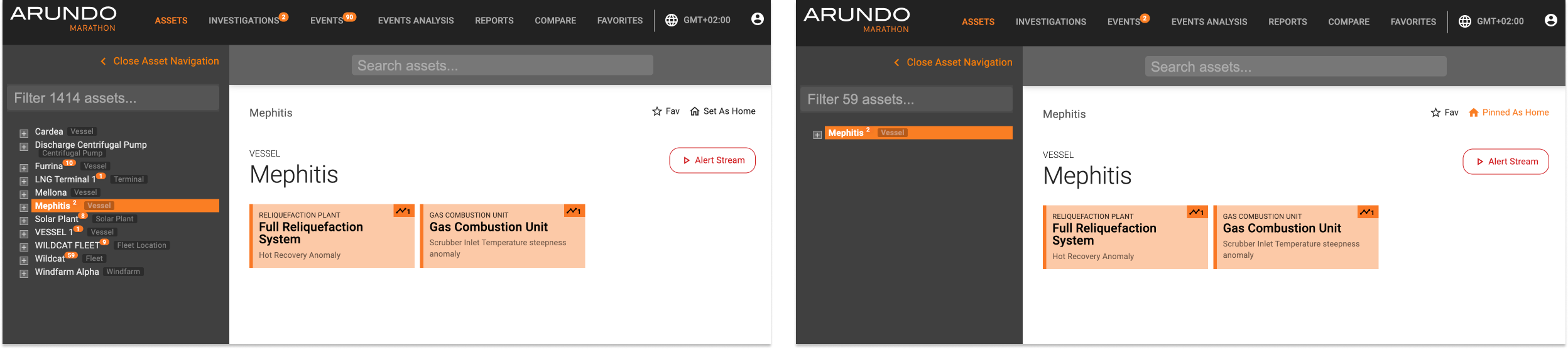
Example of asset view before setting the top-level asset Mephitis as home (left) and after (right). Note the change in the asset hierarcy and the count of open investigations and events