Events

The Events page summarizes all events in a tabular form, complete with event type, associated asset, start date & time, end date & time, duration, whether the event is open or not, and the number of comments that it has.
If you click on the Events tab, you will see a screen that looks similar to the one below:
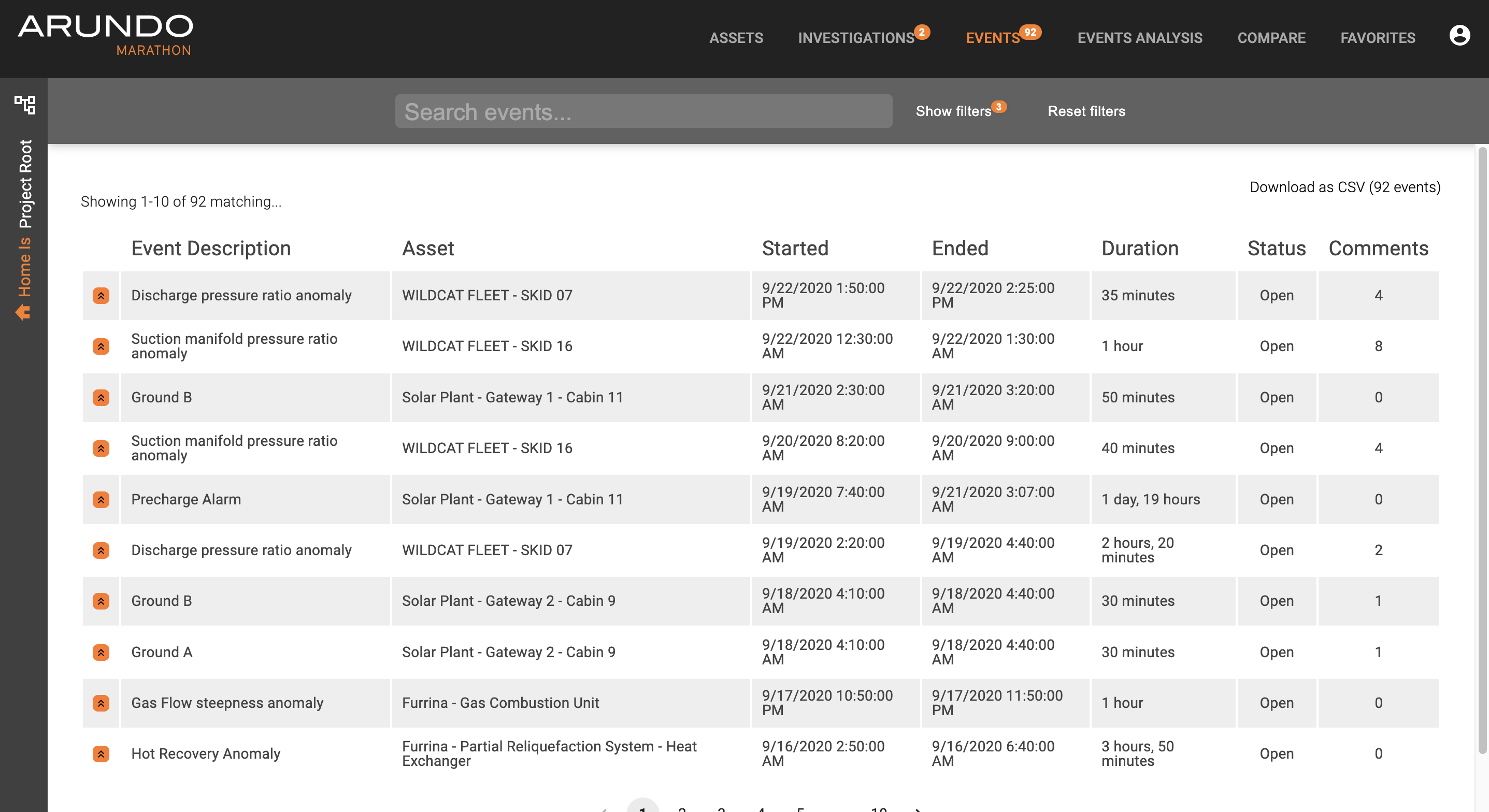
Exploring Events
Here's how to explore events:
- Access Marathon.
- Click Events on the Navigation bar.
- Find an event of interest, either starting at the top of the queue or by searching for specific events or assets to filter for desired events.
- Select the event.
- Analyze relevant data.
- Take action (e.g. consult other colleagues using comments, make an operational change, etc.)
- Dismiss the event.
Searching Events
By default, you can see that only open events with a severity higher than "None" show up when you initially open the Assets tab. This can be confirmed by looking at the search bar at the top; the checkboxes for Severities "Low" and "High" are checked and the checkbox for Status "Open" is checked as well.
If a user wants to see all events, both those that are open and those that have been closed, the user can check also the box for Status "Dismissed". If a user wants to see only events that are closed, uncheck the status box for "Open", leaving only the "Dismissed" box checked. To see events of Severity "None" in the list, toggle the corresponding checkbox in the Severities column. The results will adjust to show events that have been closed.
Aside from searching by Status or Severity, users can also search by event description, asset, or any other relevant key words. To search for a specific phrase, a user can use quotes around the search, e.g. "SKID 02" or "temperature overheat". The system will search as you type. See example below:
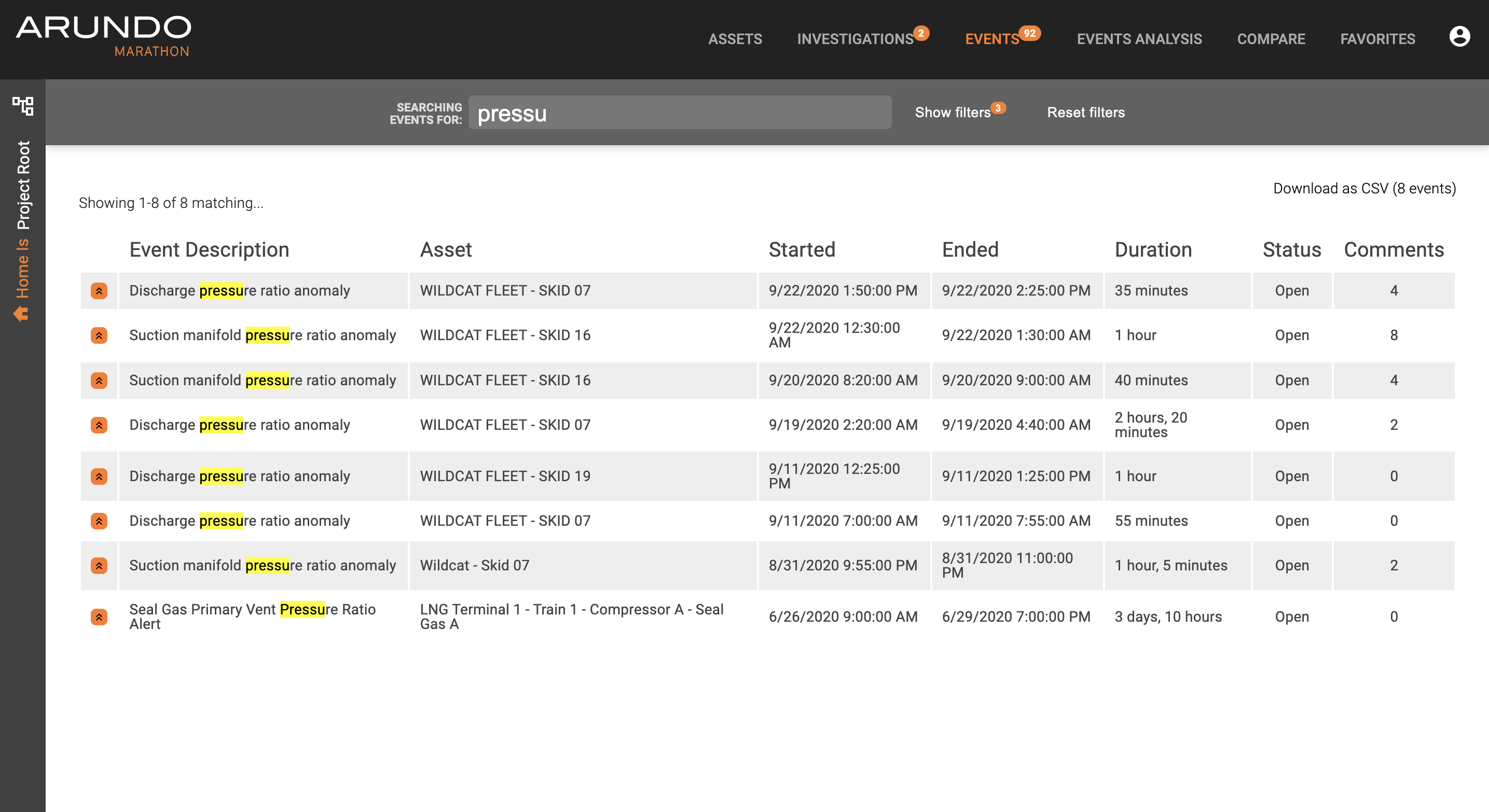
Using the filters
Other than Status and Severity, the Events filter panel includeds controls for setting cutoff dates for the event start and a few commonly used toggles for filtering on comments on the events. 
Search shortcuts
If the quick-access filters are not sufficient for your search/filter needs, the Event search bar provides keywords for searching for specific event metadata. Clicking the "Search events..." text input will bring out a popup that explains what keyword constructions are supported.
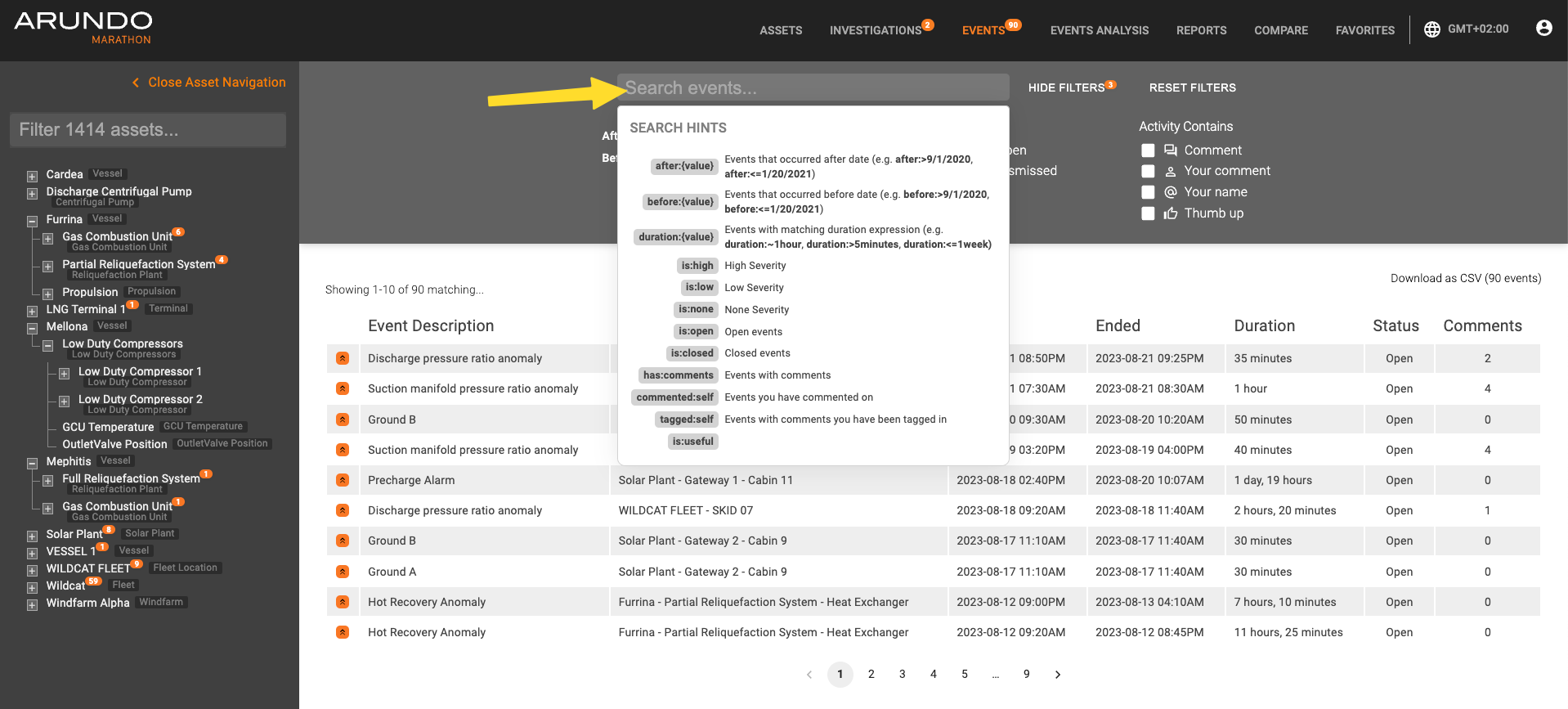
Ensure that there are no spaces between the shortcuts if you use multiple.
Exploring a Specific Event
If a user clicks on any of the events, the user will be taken to the event specifics, where the event type, severity, start/end times, duration, and relevant graphs will be shown. Clicking the "dismiss" icon next to the "Status" label will dismiss the event and remove it from the list of Open events. See below:
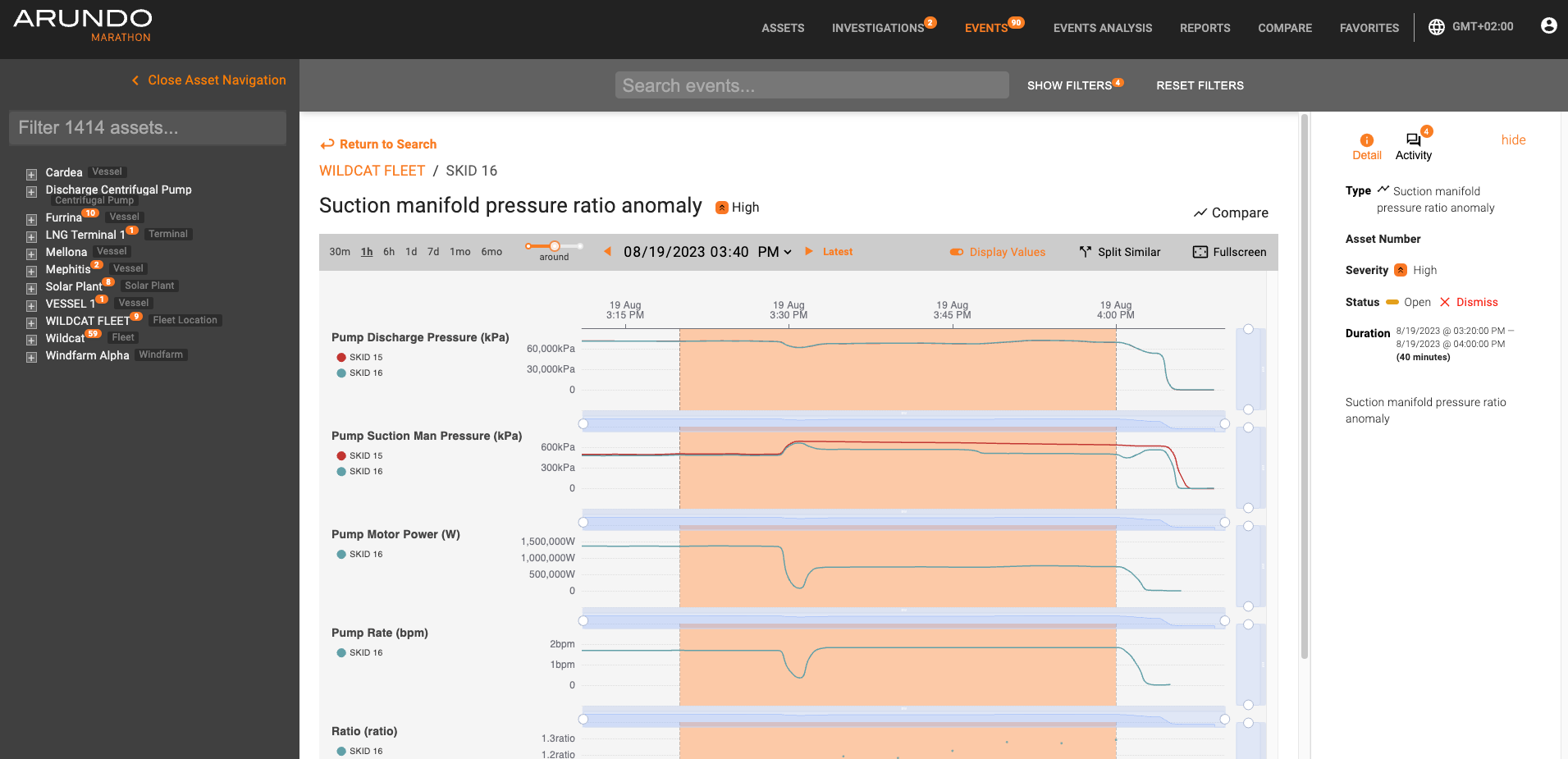
A "dismissed" event is shown in a toned-down color on the overlay. A dismissed event can be reopened by clicking the "reopen" icon, located in the same place on the screen as the "dismiss" button on an open event.
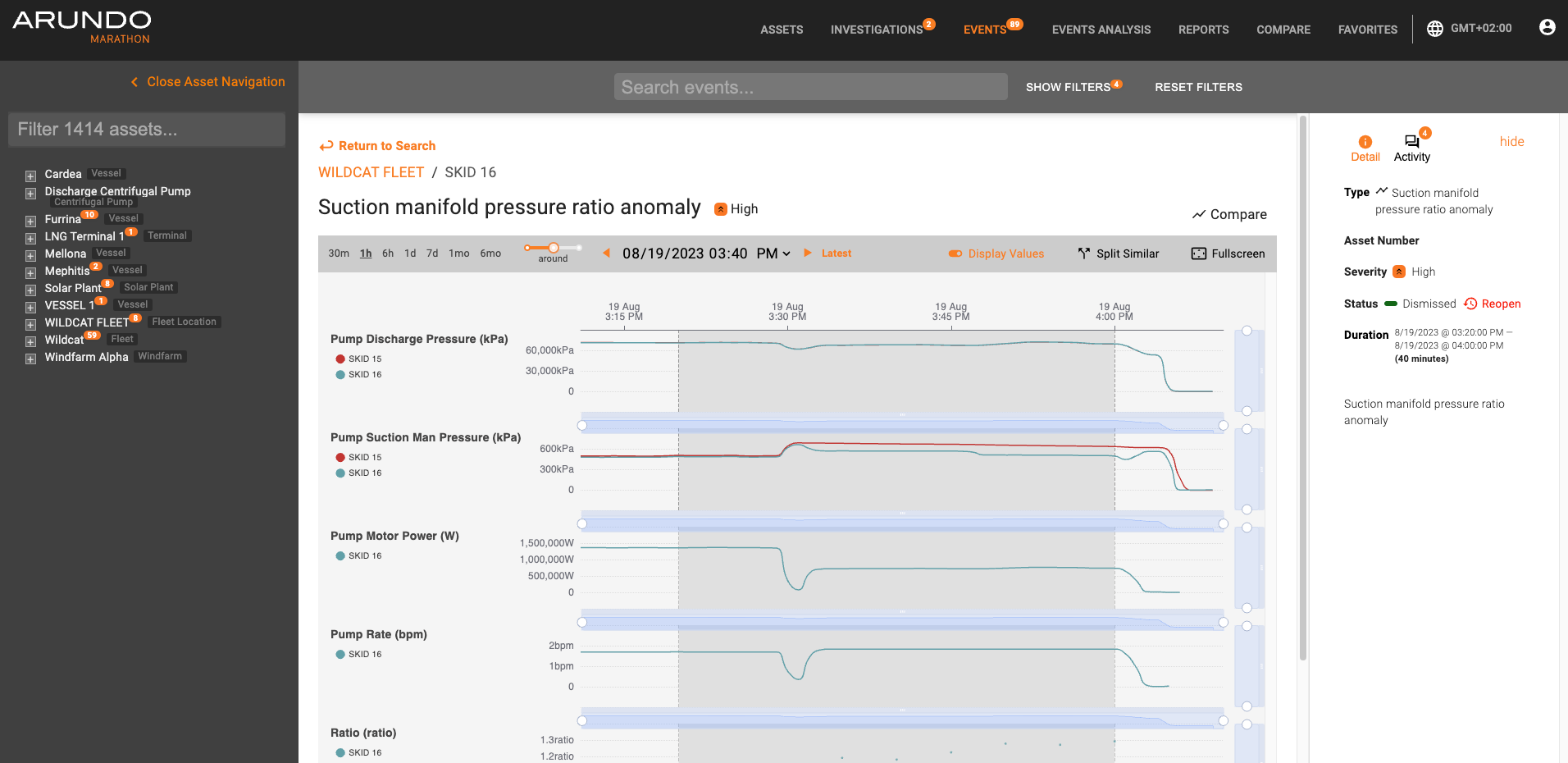
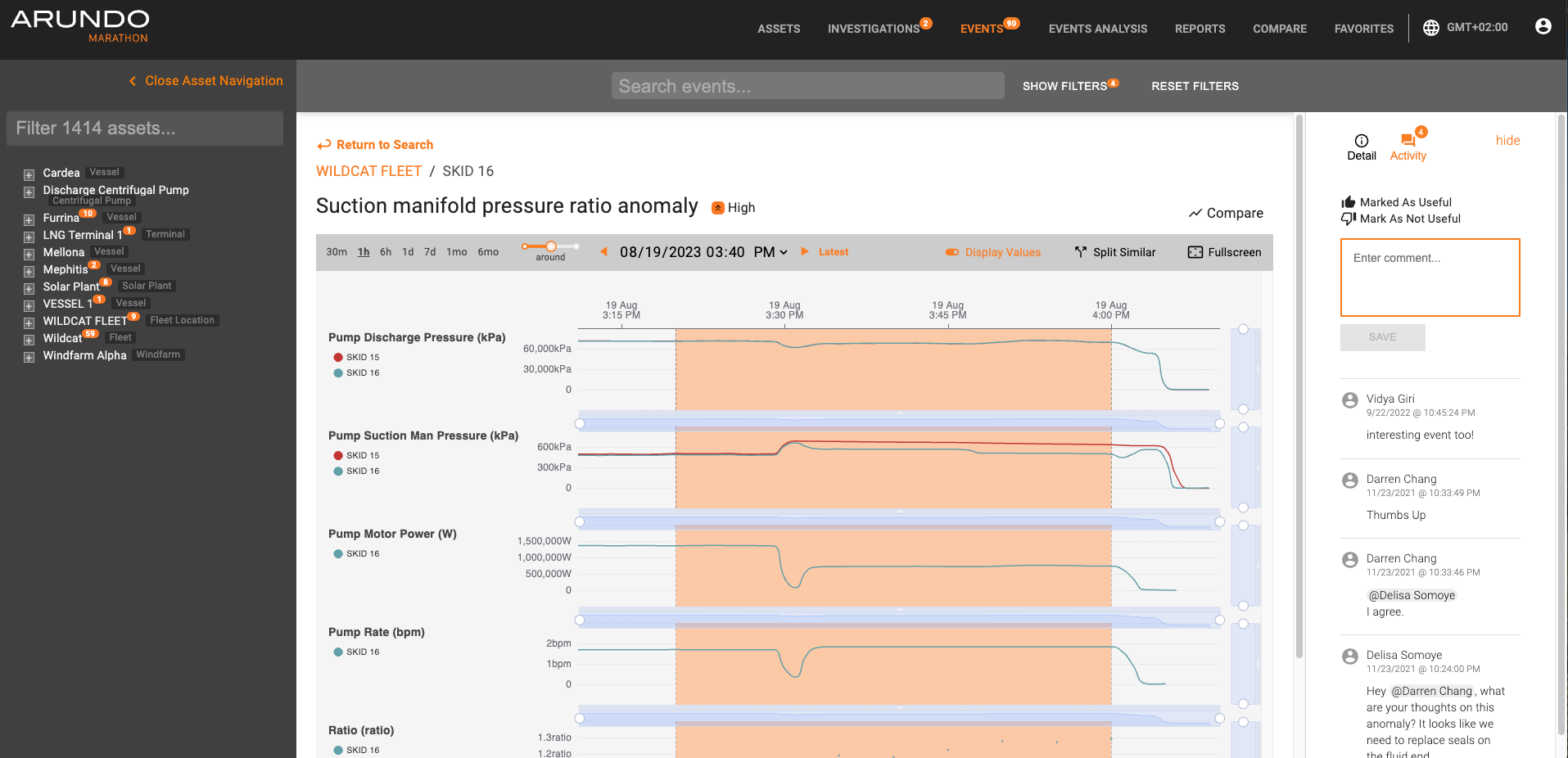
A user can examine the relevant graphs to facilitate in troubleshooting the event. If a user requires additional information or would like to alert a collegue of the event, the user may make use of the Activity section to the right.
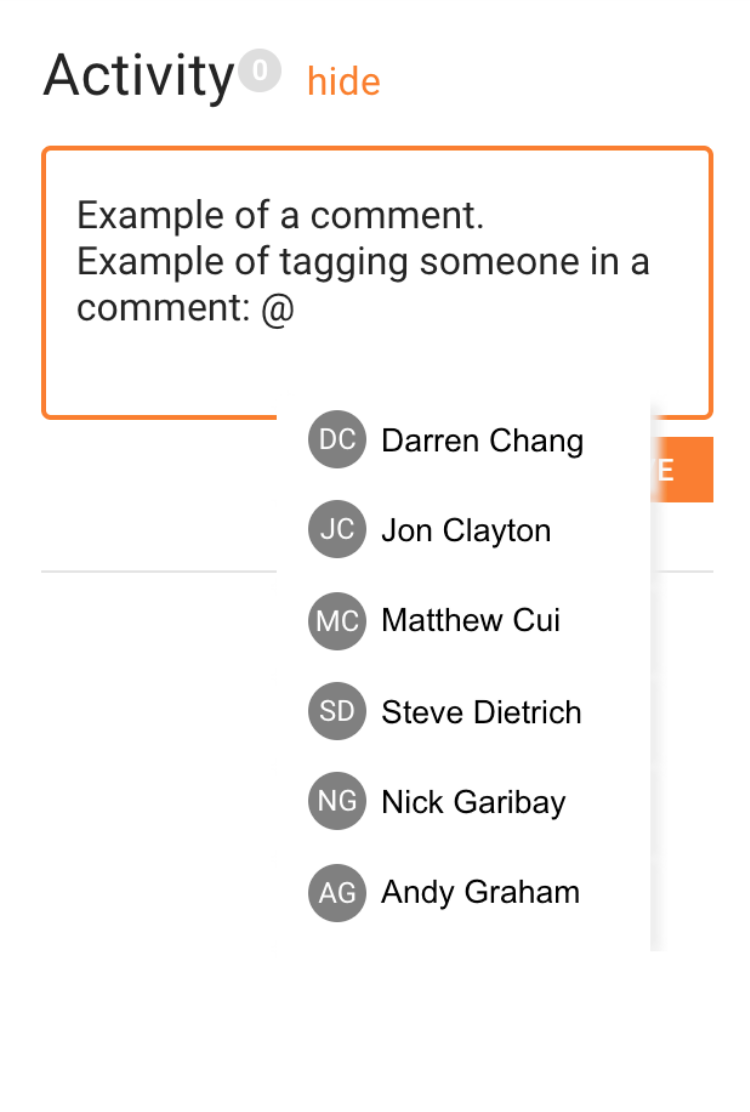
To alert a collegue, a user may make use of the @ feature. Once a user types '@', other users within the same organization will be listed. As a user begins to type desired user's name, the search results will be narrowed down. The user should click on the desired name and write an appropriate comment. When finished, the user should click SAVE, and the person tagged in the comment will receive an email notification. Below is an example of using the comments feature:
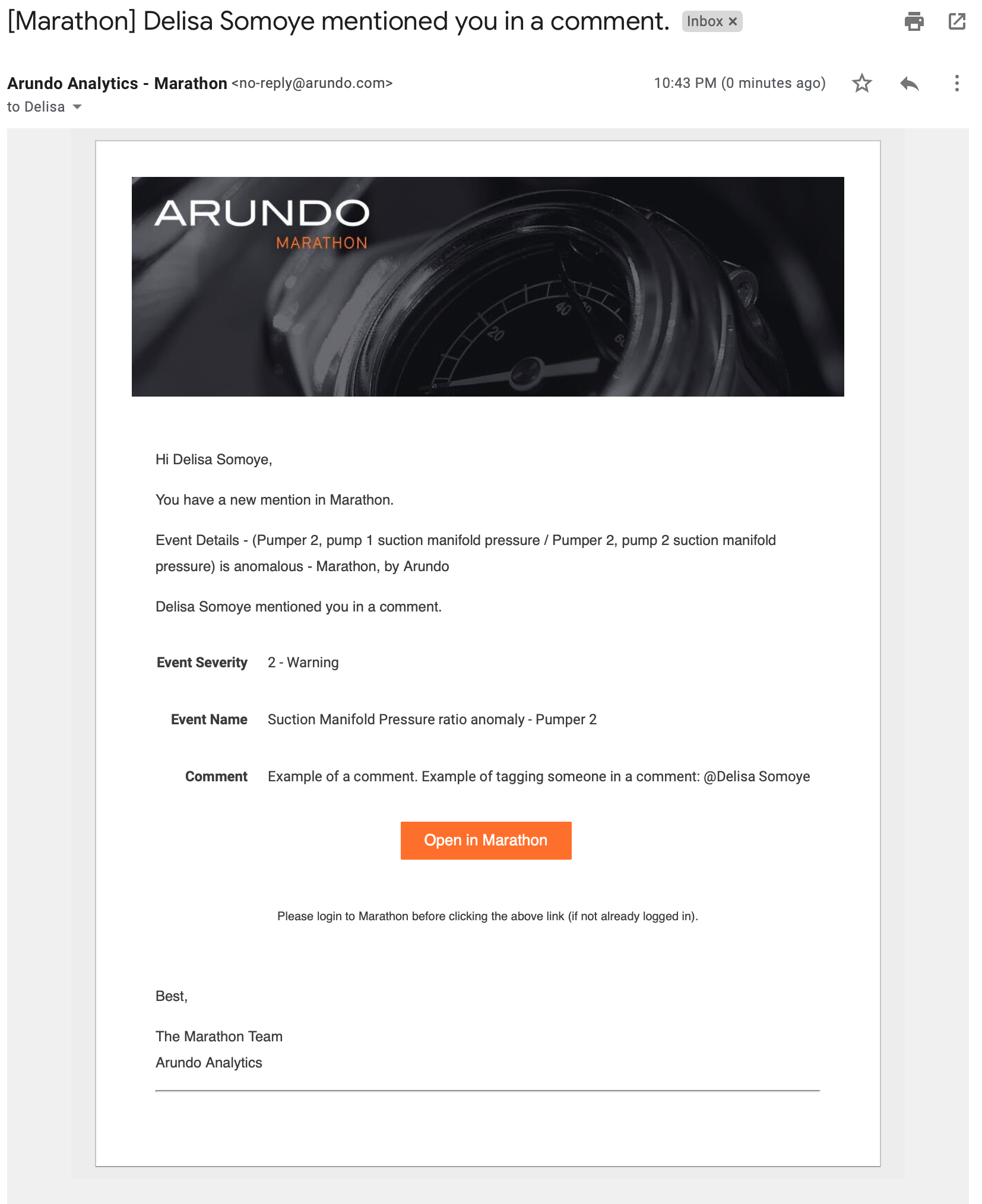
The email notification will include the event, severity, comment, and a direct link to the event. See below:
After a user does appropriate troubleshooting, the user can either give the event a thumbs up or a thumbs down--signifying whether it was useful or not. If no further attention is necessary, the event may be dismissed by clicking "Dismiss Event"; otherwise, it can be left open for further discussion and review. If an event is dismissed on accident, it can be re-opened by clicking "Reopen Event."
Events with Geodata
If an event has geographical data (latitude and longitude) attached to it, Marathon will display the location of the asset at the event start and event end. This can be helpful contextual information when analysing an event. On the event Detail page, a mini-map will be displayed under the heading "Asset Location".
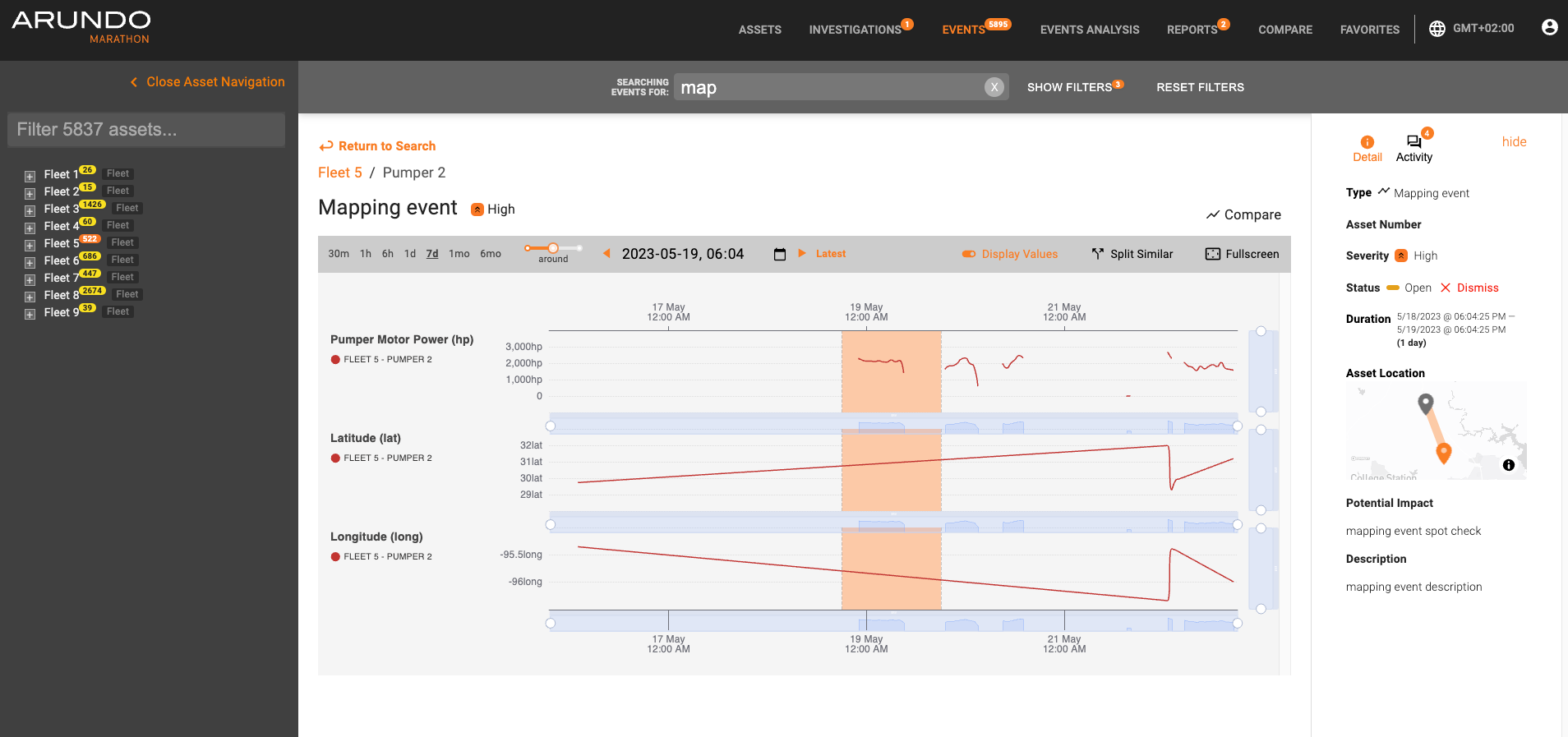
Clicking on the mini-map will bring up a larger view of the asset location at the start and end of the event.

Exporting Events
A user also has the option of exporting events by clicking on "Download as CSV (# events)" above the Comments column, shown below:
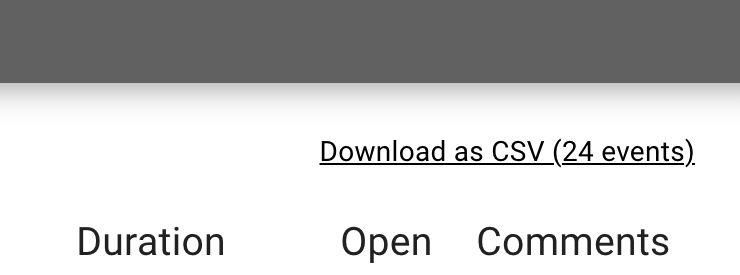
The CSV download will be filtered to show the events that match the user's search. For example, in the above search, there were 11 events that were open (specified by "is:opened"). If a user wants an export of all events, both open or closed, the user could clear the search box.
The CSV download will contain the following information for each event:
- Event Description - description of event
- Asset Name - name of asset
- Asset Path - asset hierarchy path
- Start Time - time event started
- End Time - time event ended
- Duration - duration of the event
- Open Status - whether the event is open or not
- URL - URL that will take a user directly to the event